Please ensure Javascript is enabled for purposes of website accessibility

What You Need to Know: BCAR’s Authentisign FAQ

Welcome to BCAR’s Authentisign Transition FAQ page. As we move from DocuSign to Authentisign, we know members may have questions about what’s changing, when key deadlines are approaching, and how to get started. This page was created to give you clear answers, helpful resources, and support throughout the transition.

General Information

What is changing?

BCAR is transitioning from DocuSign to Authentisign for electronic signatures. Realtor® members will need to begin using Authentisign as part of this change.

Why is BCAR making this change?

BCAR is making this transition to provide members with a more streamlined electronic signature experience and a platform that better supports real estate transaction workflows. In making this decision, the BCAR Board of Directors also took into consideration the cost of DocuSign, as well as concerns related to customer service and technical support.  

How much time do members have to make the switch?

The last day to use DocuSign at no charge will be May 22, 2026. 

How do I access Authentisign?

Authentisign is a Lone Wolf product and is accessed through zipForm, which is a PAR member benefit. If you already have zipForm access, you can use that platform to access Authentisign. If you still need to register for zipForm, please use the link below to get started:

Register for zipForm access here

I am currently midway through a transaction in DocuSign. What do I need to do?

Transactions already started in DocuSign may be completed there during the remainder of the transition period. However, if the transaction will not be completed by May 22, you should save your documents already in DocuSign, and use Authentisign for any documents to be signed going forward.

DocuSign is asking for payment. Do I need to pay them?

No. BCAR’s member benefit is now Authentisign, not DocuSign. Members do not need to pay DocuSign in order to continue using an electronic signature platform through their BCAR membership. Members should transition to Authentisign and refer to BCAR’s resources for instructions on how to access it.

Can I continue with DocuSign and pay for it myself?

Yes.  NAR offers a DocuSign discount as a member benefit.  Details can be found here. 

If you create your new NAR DocuSign account using the same email address that was associated with your BCAR DocuSign account, you should have access to your previous DocuSign documents.

If you need DocuSign customer service, please go to support.docusign.com  

Can I use Authentisign to send a document for e-signature if it is not in the forms library?

Yes. If the document is not found in the forms library, you can still use Authentisign to have it signed. You will need to log in to zipForms to access Authentisign and upload the document there for e-signature.


I Have zipForm: How Do I Access Authentisign?

If you already have access to zipForm, you can access Authentisign through the zipForm platform. Authentisign is a Lone Wolf product available within zipForm.

Do I need to create a separate Authentisign account?

No. If you already have zipForm access, you should access Authentisign through zipForm.

How do I set up Authentisign if I already use zipForm?

This tutorial will walk you through how to change the default e-signature service in ZipForms.

These steps apply to members who are currently preparing transactions in Zipforms using forms provided by the Pennsylvania Association of REALTORS, then using DocuSign for e-Signature provided by BCAR or GPAR.

If you receive forms or e-signature services from your office, your options may be different.

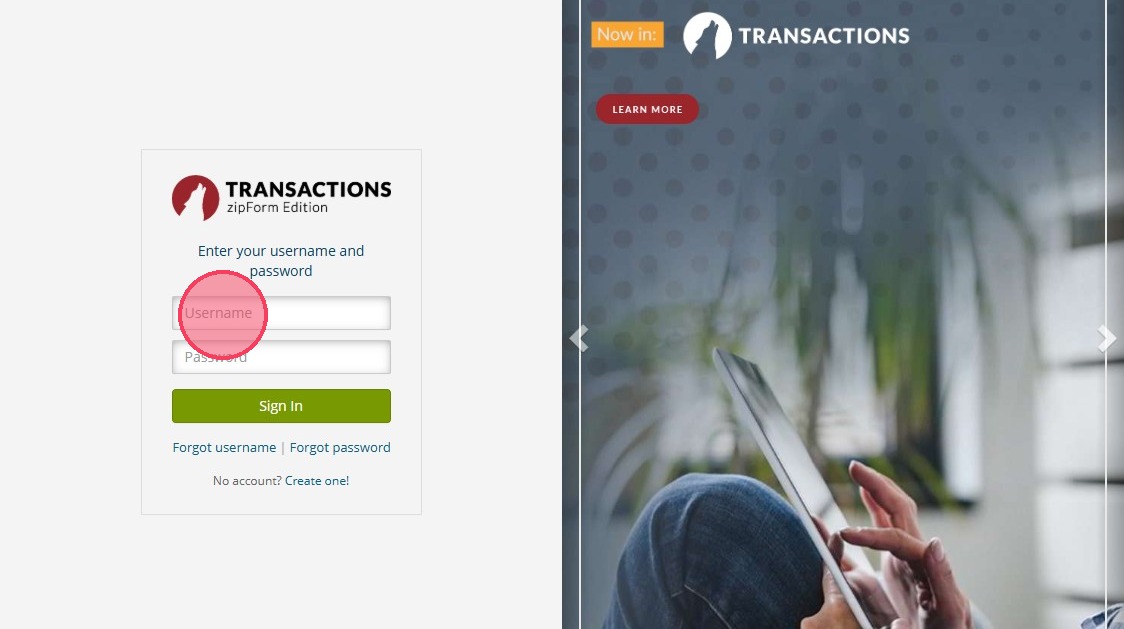
1. Log into your existing ZipForms account you get with your PAR membership

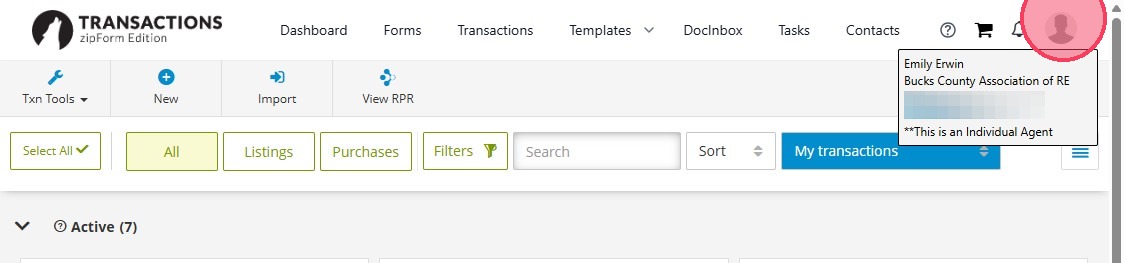
2. Click your photo to go to Your Profile

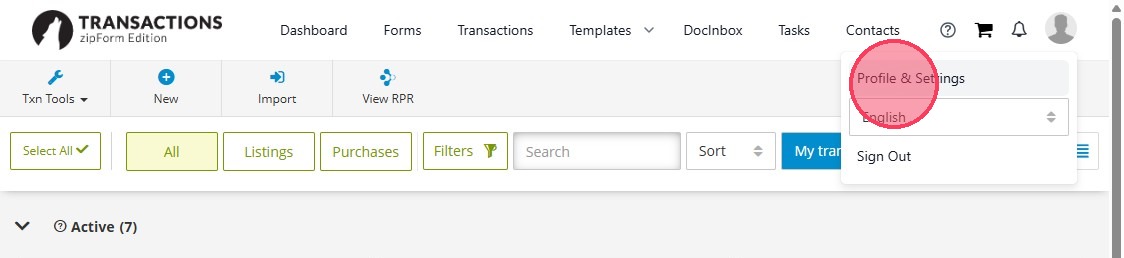
3. Click "Profile & Settings"

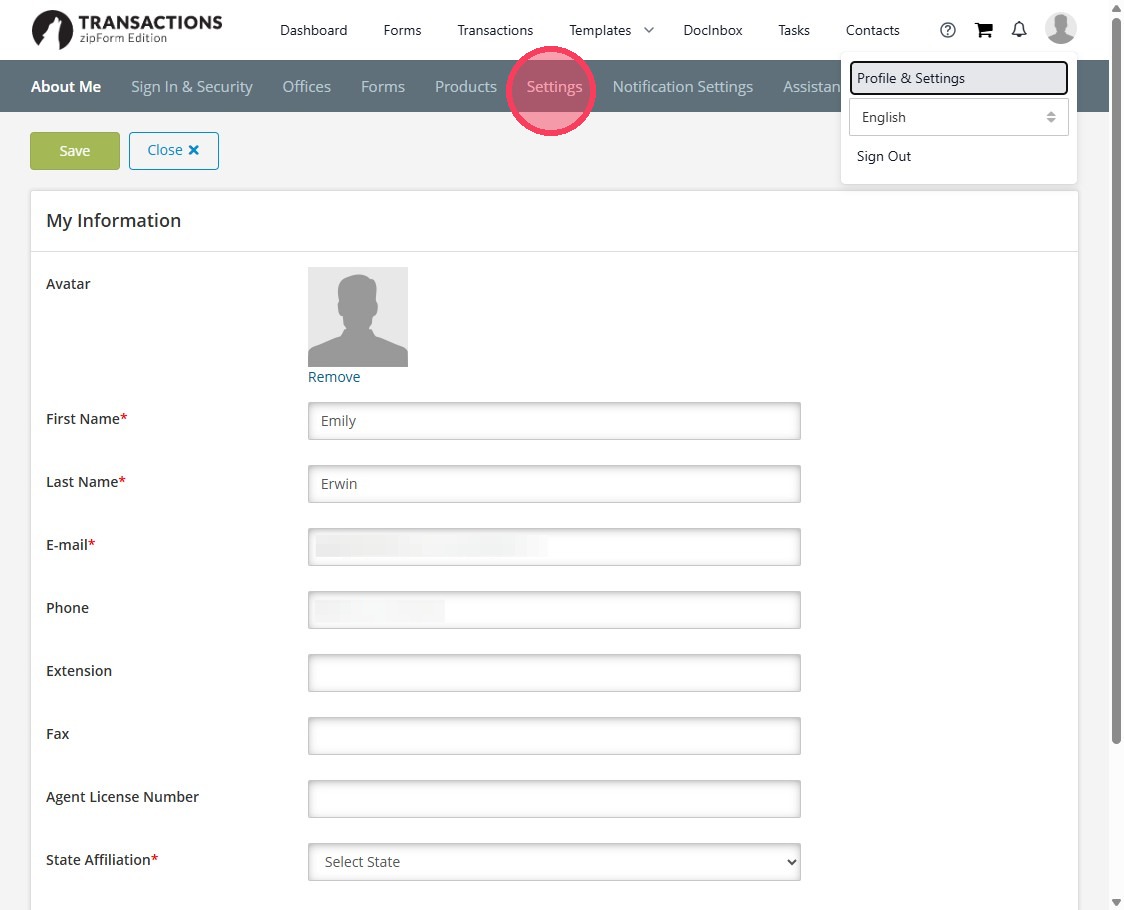
4. Click "Settings"

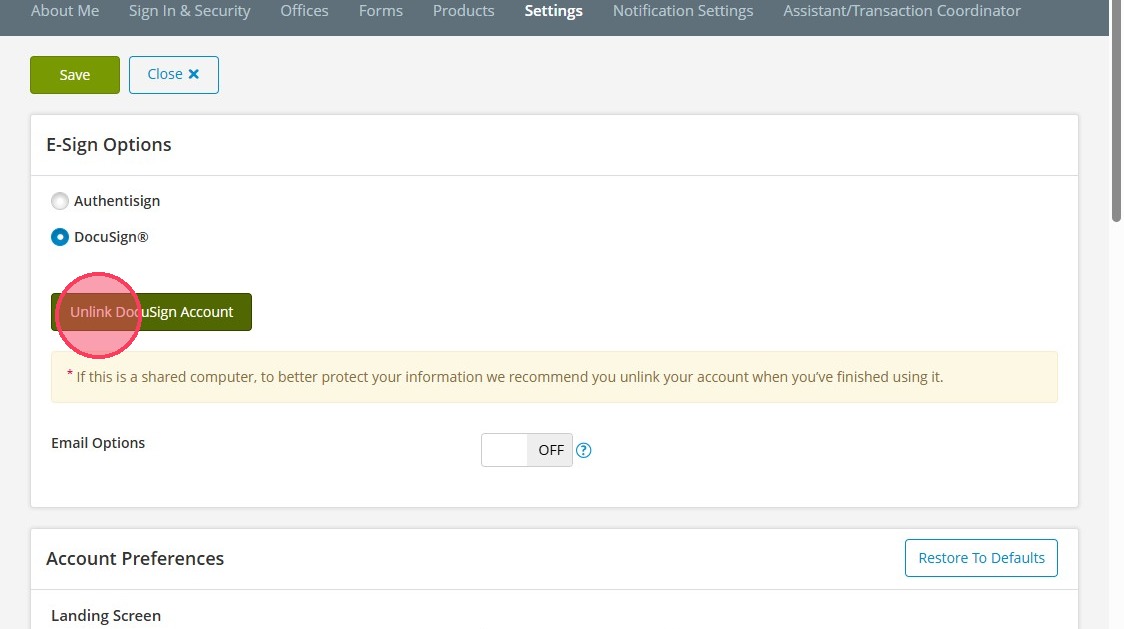
5. Click "Unlink DocuSign Account"

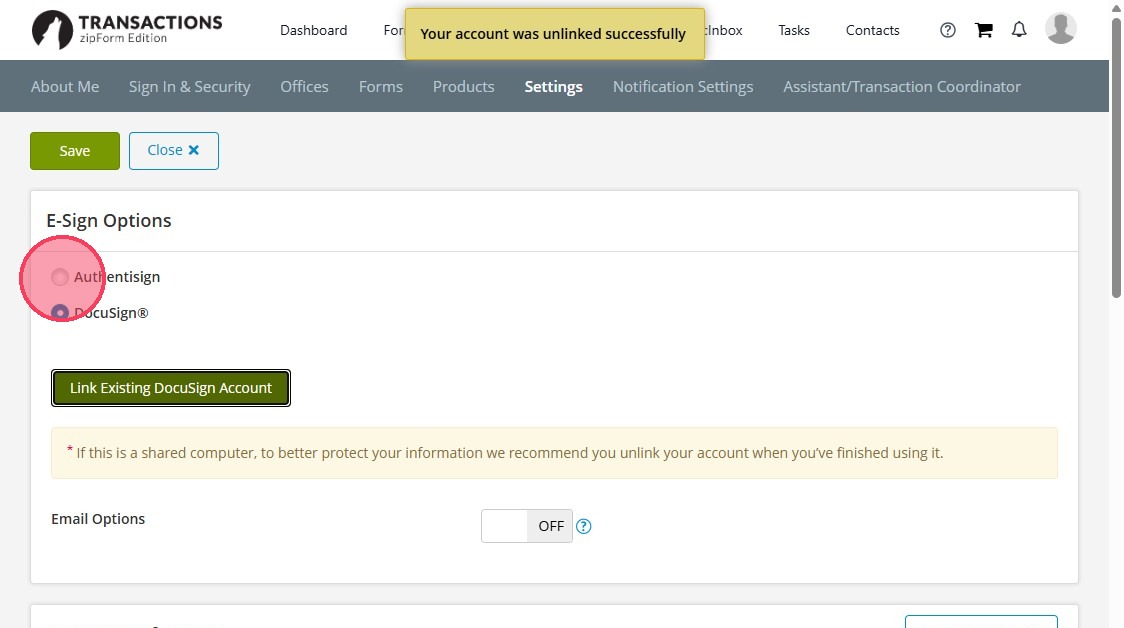
6. Click "Authentisign"

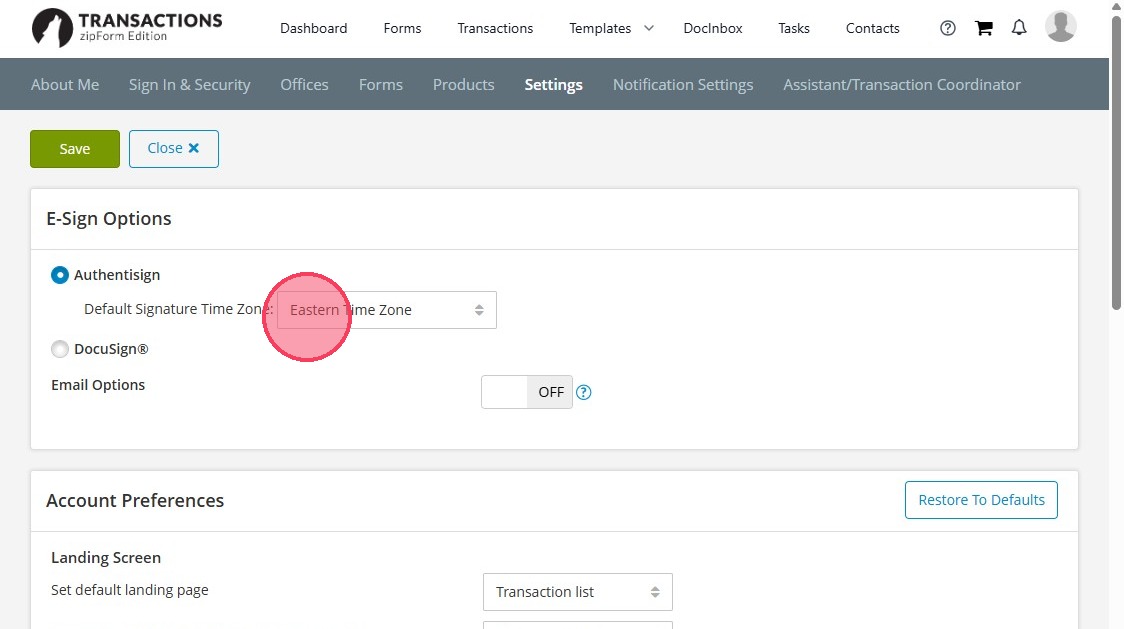
7. Ensure the selected time zone is correct

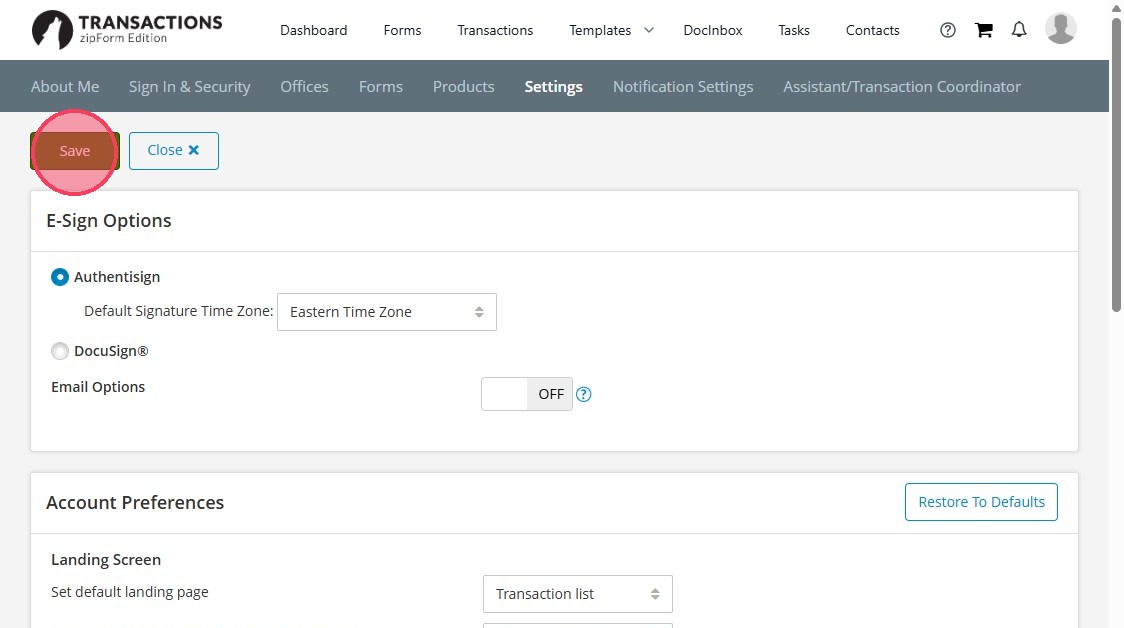
8. Click "Save"

You will now be set up to use Authentisign e-Signature

Can I begin using Authentisign right away if I already have zipForm?

Yes. If your zipForm access is active, you can begin using Authentisign through the platform.

I Do Not Have zipForm: How Do I Set Up zipForm and Authentisign?

If you do not already have zipForm access, your first step is to register for zipForm. Since Authentisign is accessed through zipForm, you must first set up zipForm before using Authentisign.

Step 1: How do I register for zipForm?

Register for zipForm access here.

Step 2: What happens after I register for zipForm?

Once your registration is complete and your access is active, you will be able to log in to zipForm.

Step 3: How do I access Authentisign after setting up zipForm?

After your zipForm access is active, log in to zipForm and access Authentisign through the platform. 

Using DocuSign During the Transition

Can I still complete transactions that were already started in DocuSign?

Yes, however, all transactions must be completed before May 22, 2026. 

Do I need to switch right away?

BCAR strongly encourages members to begin using Authentisign as soon as possible. Switching early gives you more time to get comfortable with the platform, attend training, and avoid last-minute issues before the deadline.

What happens after May 22, 2026?

After May 22, 2026, members should be fully using Authentisign. DocuSign should no longer be used, and all documents should be downloaded. DocuSign may charge you to download your documents after this recommended date.


Authentisign-Training and Support

Will training be available for Authentisign?

Yes. Training resources are available to help members get started with Authentisign and become more comfortable using the platform.

Will BCAR offer live Zoom training on Authentisign?

Yes. BCAR will host a live Zoom Power Hour for members on May 11 at 12:00 PM to provide training and guidance on using Authentisign. Click here to register. The session will also be recorded and sent to all BCAR members, so you will still have access to the training even if you cannot attend live.

Where can I find Authentisign training resources?

Members can access training and support resources through Lone Wolf’s Authentisign Resources page.

Are there video tutorials available for Authentisign?

Yes. Members can watch step-by-step training videos in the Authentisign Video Library.

Where can I find help with documents, forms, and signatures in zipForm?

Lone Wolf also provides support resources for zipForm users, including documents, forms, and signatures. Members can review those materials here: zipForm Edition Resources: Documents, Forms, and Signatures

Can I contact Lone Wolf support directly for help with Authentisign?

If you would like to speak with someone live, call 1-866-279-9653.  You can also chat or submit a support request online through Lone Wolf here: Chat or Submit a Support Ticket or email Lone Wolf support at [email protected]

What should I do if I need help getting started?

Start by reviewing the Authentisign Resources page and watching videos in the Authentisign Video Library. If you still need assistance, contact Lone Wolf Support by phone at 1-866-279-9653, chat, or submit a ticket online through the Support page.

Docusign-Downloading and Saving Your Documents

What should I do with my DocuSign documents?

Members should download and save any DocuSign documents they want to keep before the transition ends. DocuSign’s support guidance says that if an account is being closed, documents should be exported beforehand, and for accounts with five or fewer envelopes, manual download is the recommended approach.

Do I need to download all of my documents before May 22, 2026?

BCAR strongly recommends downloading any documents you want to keep before May 22, 2026. DocuSign advises users to export documents before closing an account so they do not lose access to records they may need later. DocuSign may charge you to download your documents after this recommended date.

How do I download and save all of my DocuSign documents before the deadline?

Learn how to download a completed agreement from DocuSign. This guide will walk you through the necessary steps to save your important documents to your desktop.

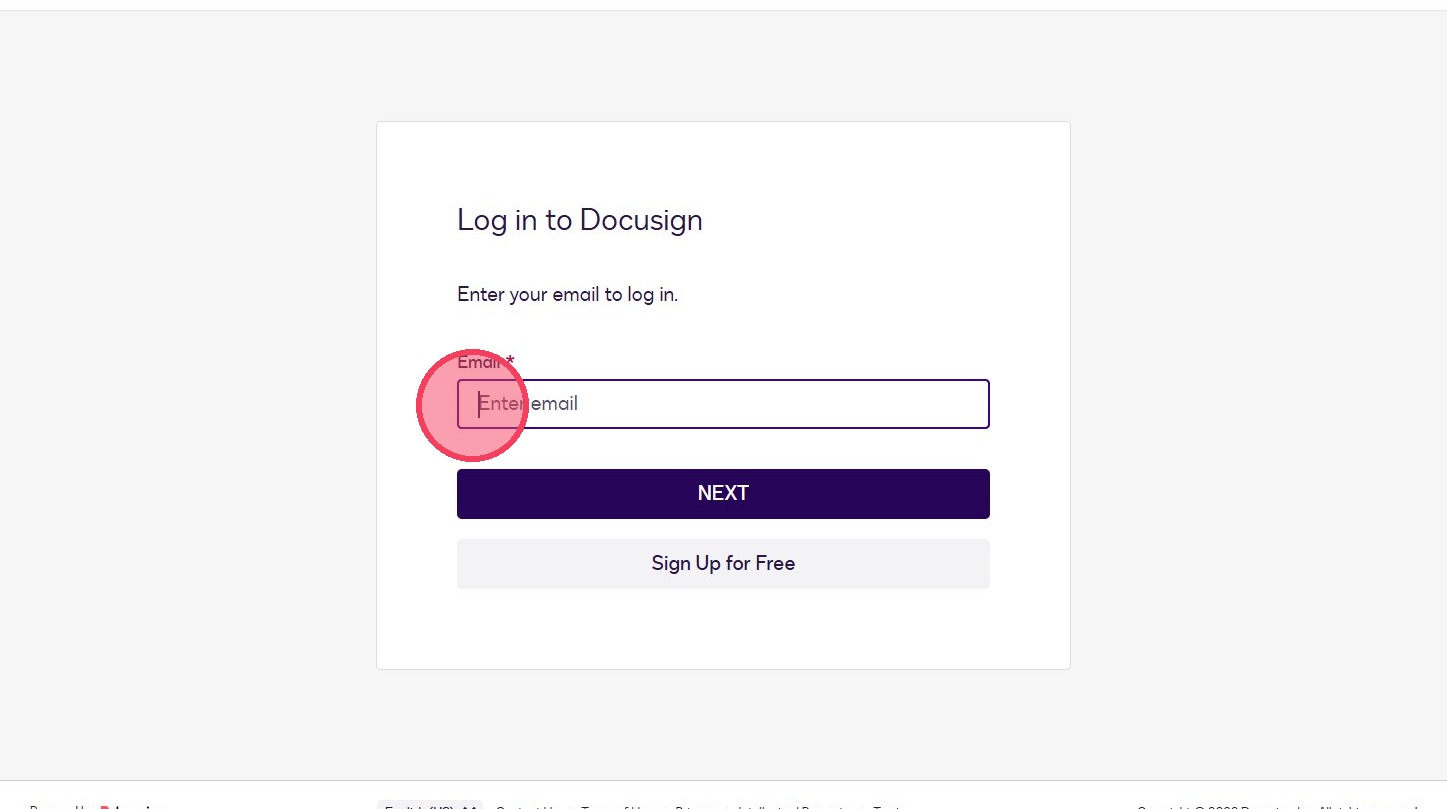
1. Log in to your existing DocuSign account you have through BCAR

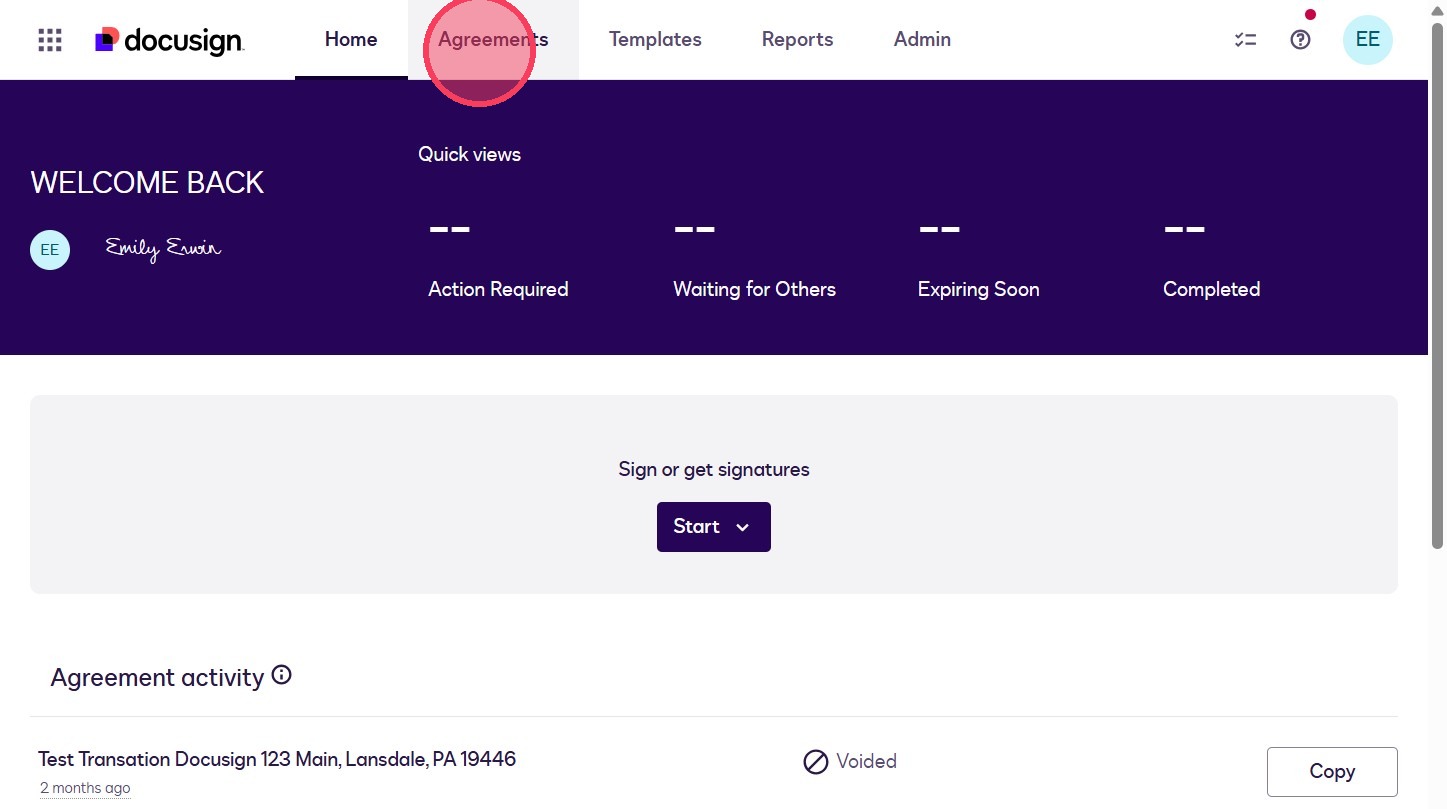
2. Click "Agreements"

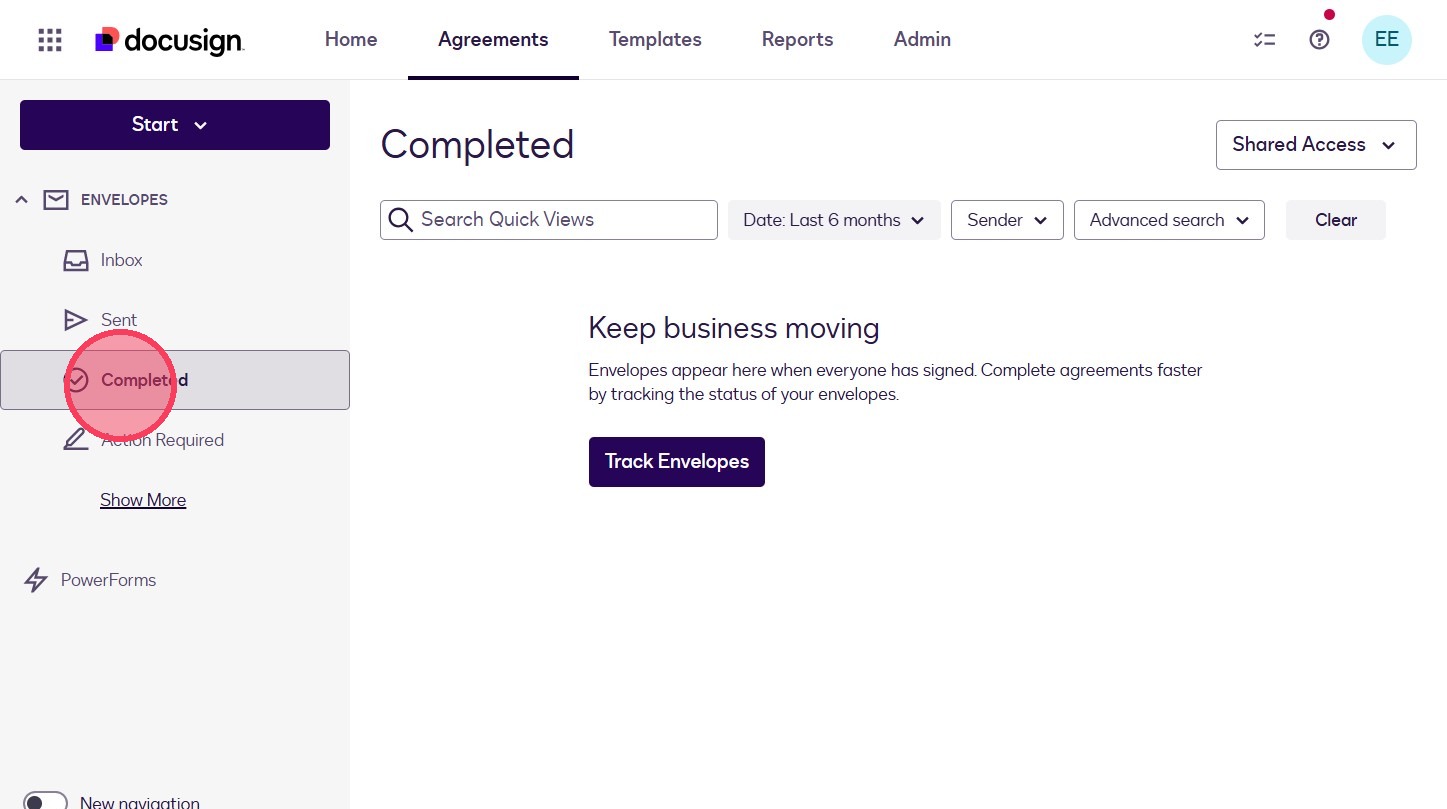
3. Click "Completed"

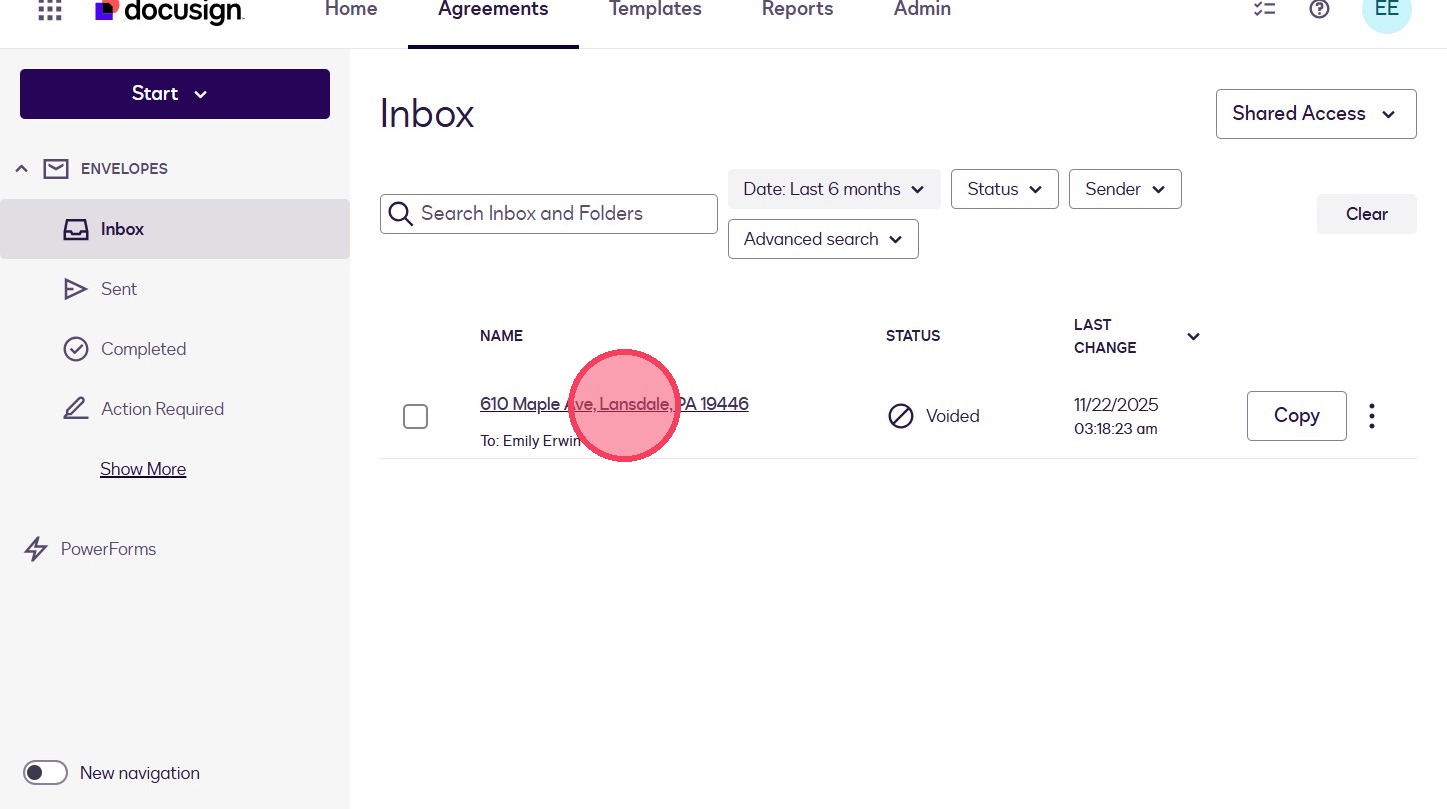
4. Select a transaction or envelope

Alert: You must go one transaction at a time, unfortunately there is no bulk export option.

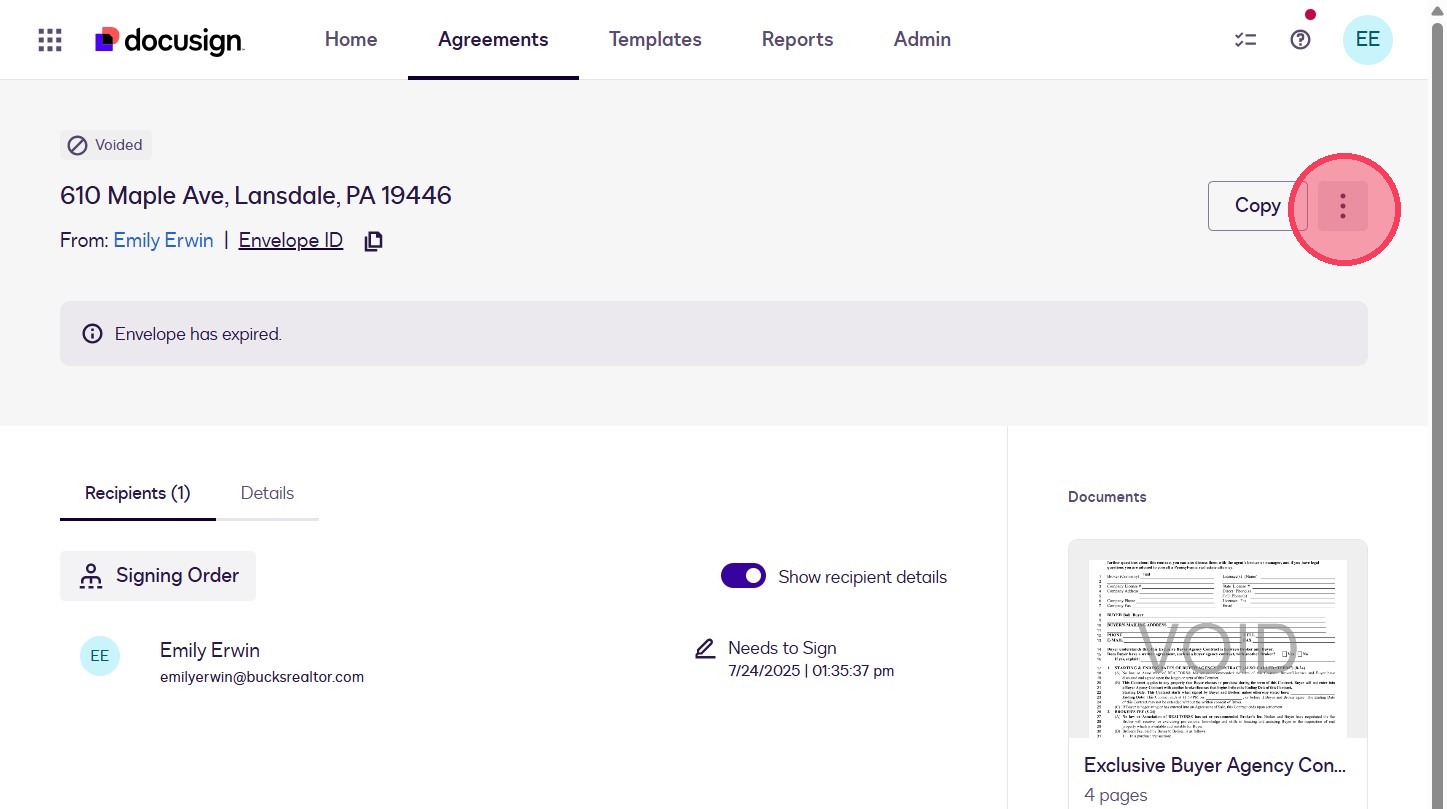
5. Click the 3 dot menu for more options

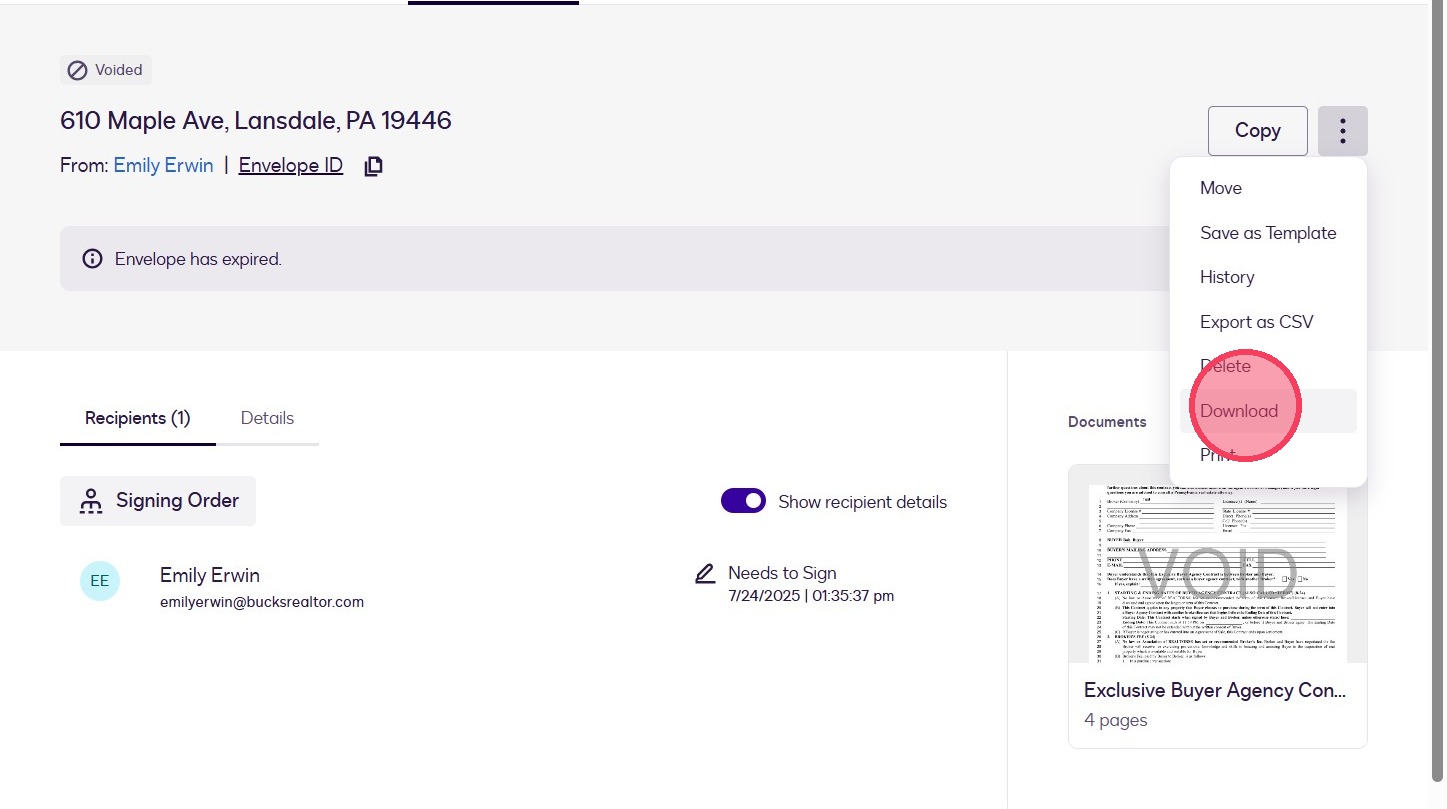
6. Click "Download"

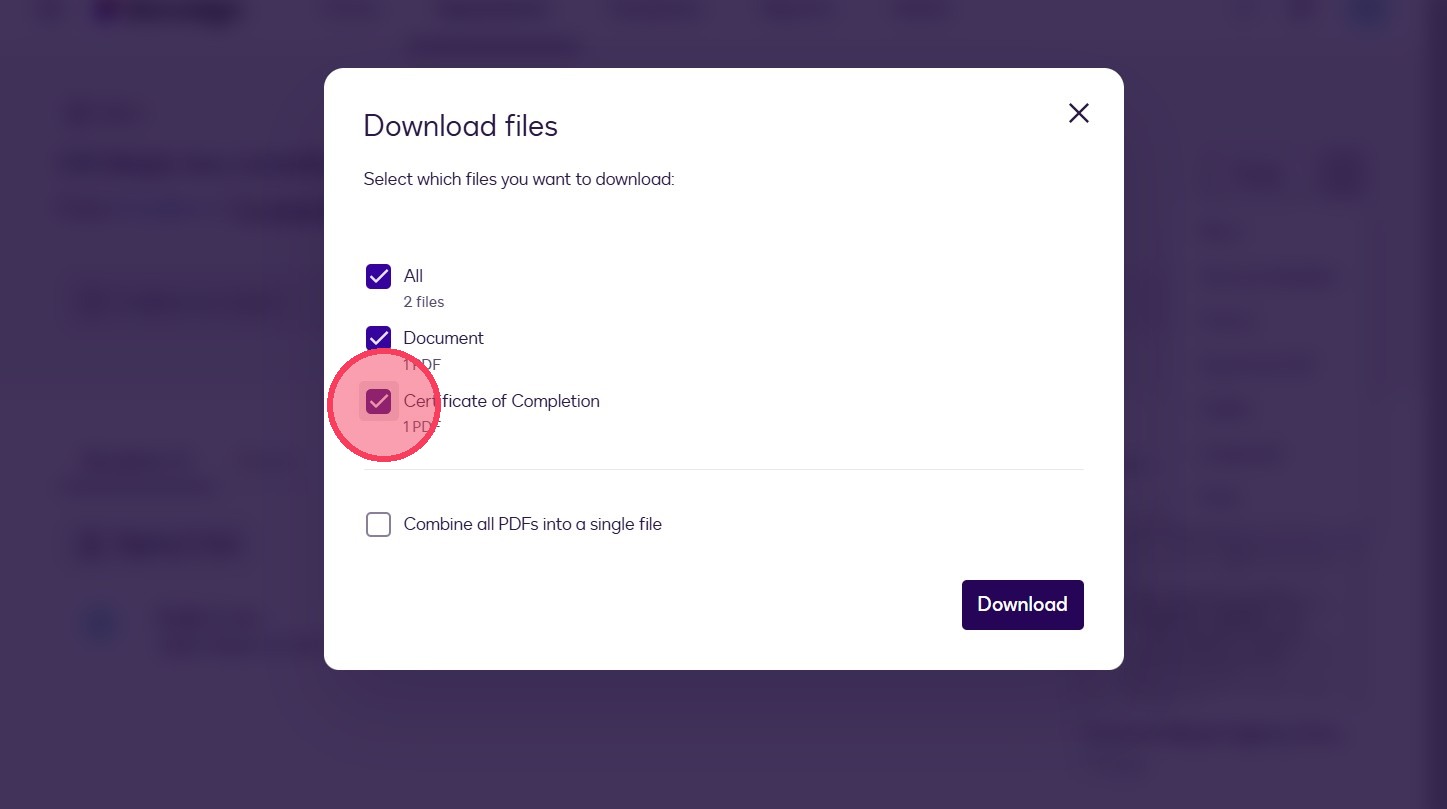
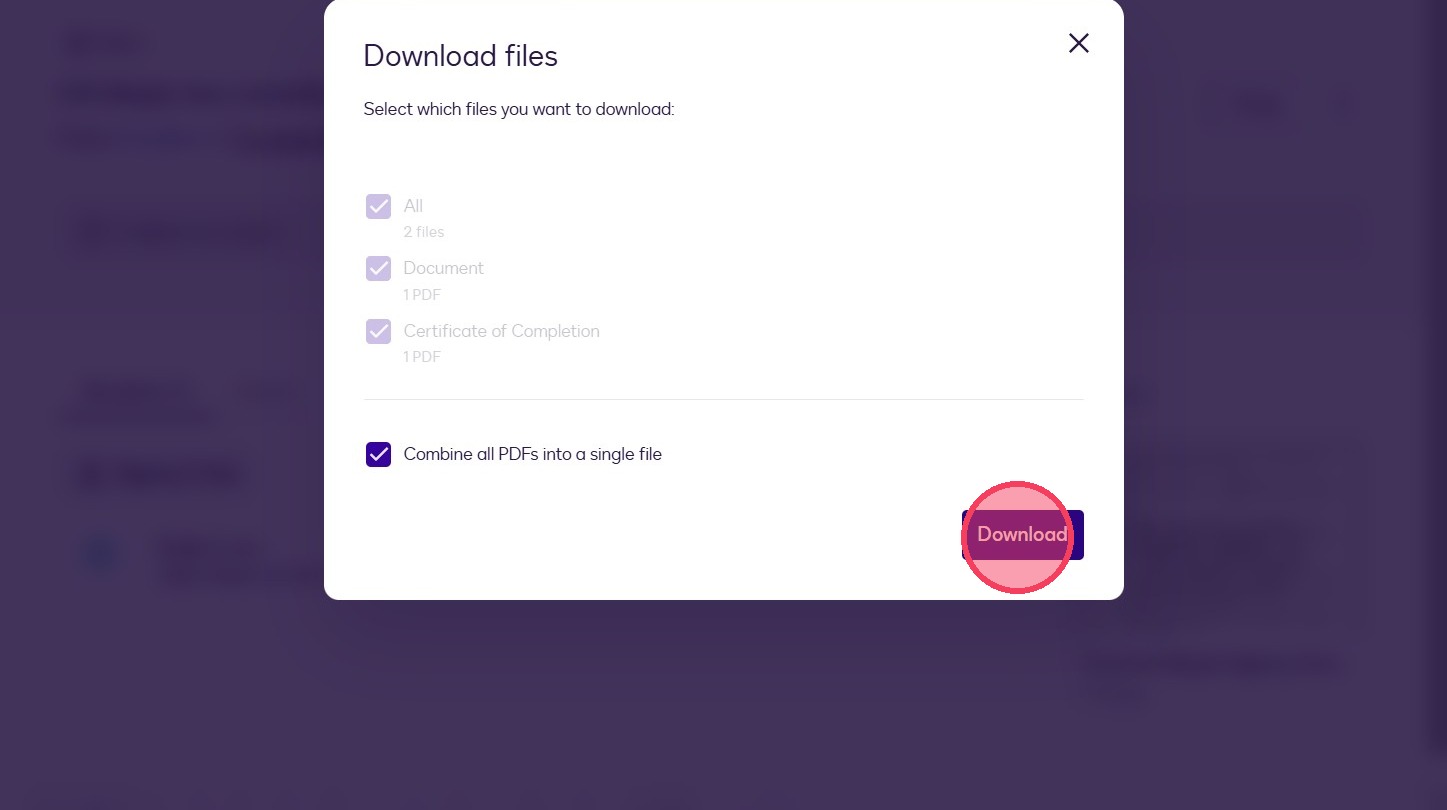
7. Ensure "Certificate of Completion" is selected

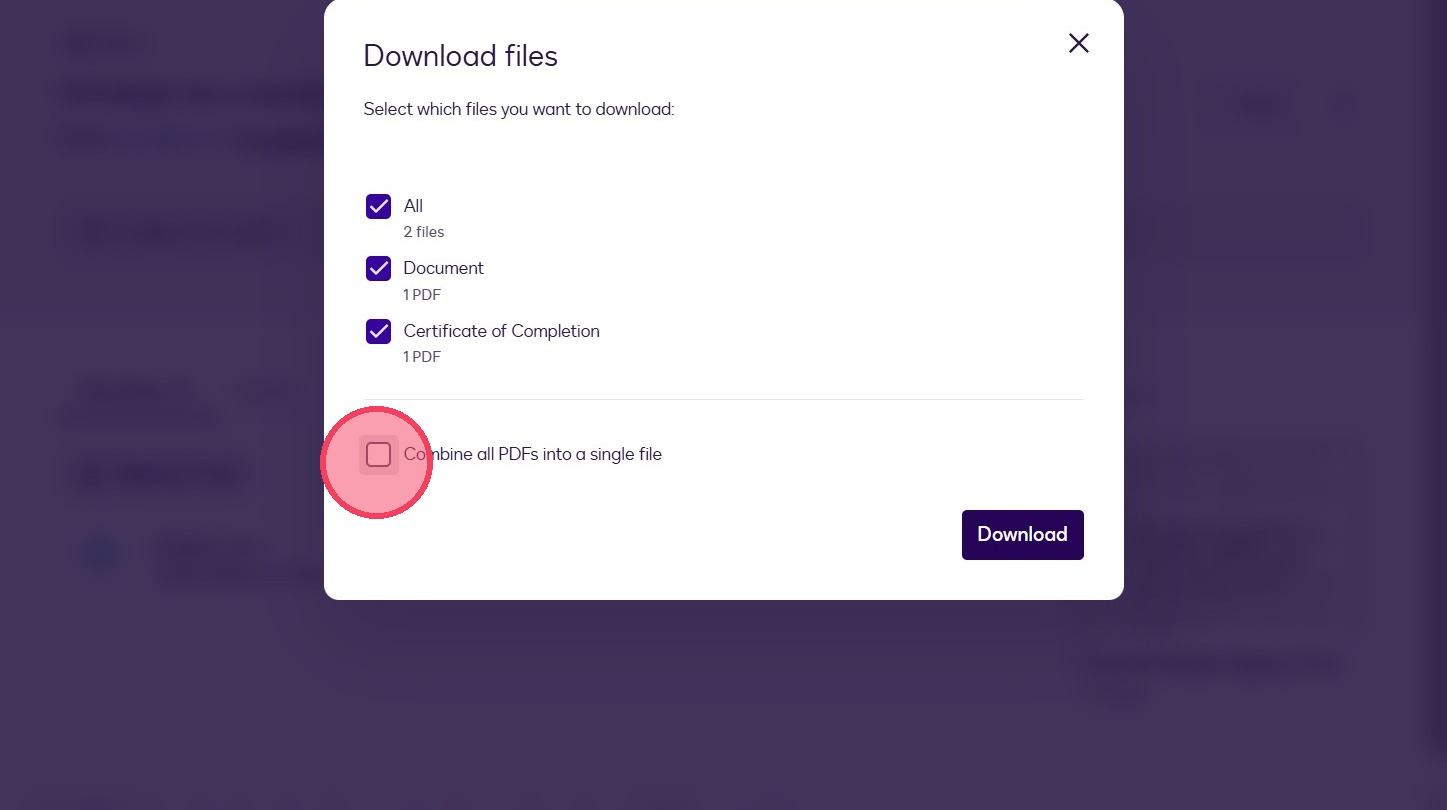
8. Select "Combine all PDFs into a single file"

9. Click "Download"

10. Choose location on your computer or cloud file storage

Repeat

11. Repeat for each transaction or envelope you'd like to save


What if I have more than a few DocuSign envelopes to save?

If you have a larger number of envelopes, start early and work through them in batches so you are not waiting until the final days before the deadline.


Who do I contact if I need help downloading my Docusign documents?

Please contact the Tech Helpline at 877.562.3165 or chat with support here.

Timeline and Deadlines

What is the deadline to stop using DocuSign?

The last day to use DocuSign at no charge will be May 22, 2026.

When should I stop starting new transactions in DocuSign?

BCAR recommends that members stop starting new transactions in DocuSign immediately. 

When must I be fully switched to Authentisign?

Members should be fully transitioned to Authentisign by May 22, 2026.

What are the most important dates to remember?

There are three key dates to keep in mind:

April 13, 2026 — BCAR announces the transition

April 13, 2026 — Recommended deadline to stop starting new transactions in DocuSign

May 22, 2026 — Final deadline to complete the switch to Authentisign